
This quick-start guide walks you through creating your first user accounts in OptimiDoc Server, enabling staff to authenticate at multifunction devices and access print and scan services. A user is essentially a set of credentials — logins, PINs and cards — tied to a person, plus the group memberships that decide what they may do.
Before You Begin
Ensure you have administrator access to the OptimiDoc administration UI. Decide which authentication methods your users will use at the device: a login and password, a numeric PIN, an ID card, or a combination. You can add several of each per user.
Opening the New User Form
-
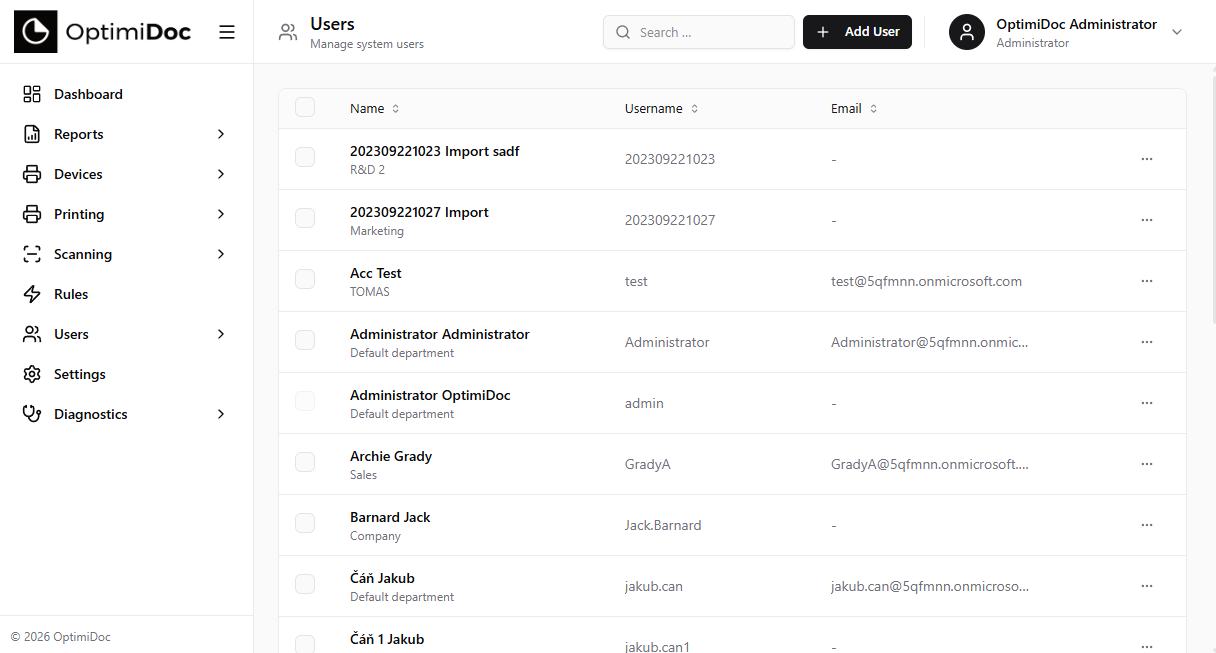
Navigate to Users in the left sidebar.
-
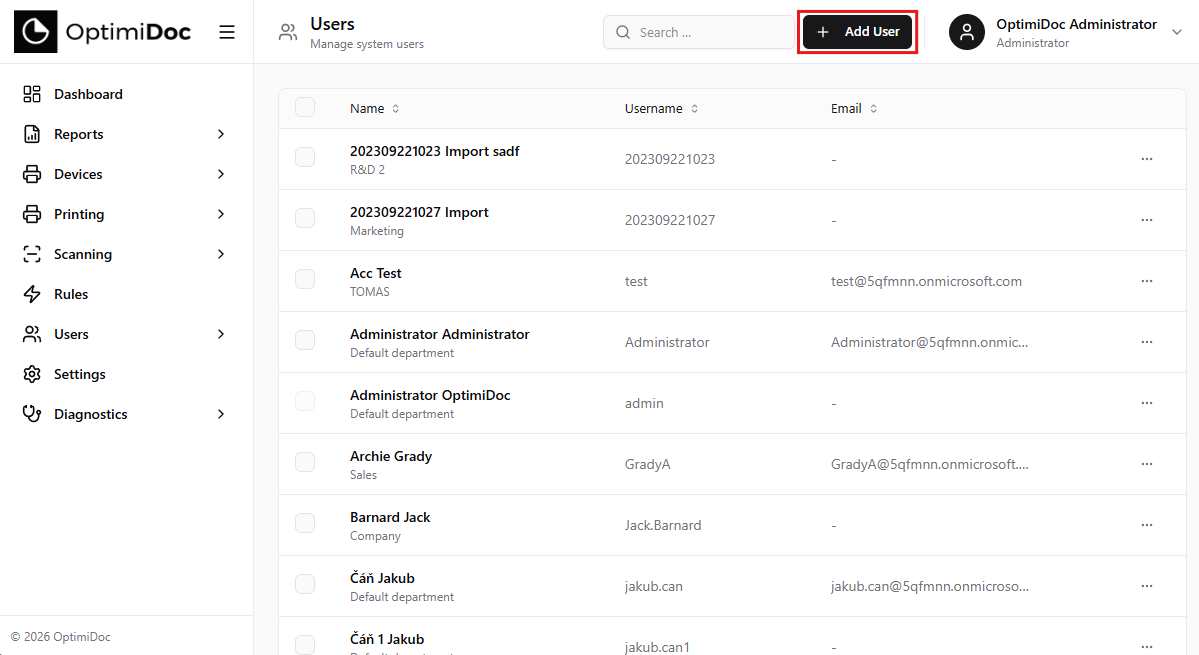
Click Add User in the top-right corner. The user form opens as a single dialogue (there are no separate tabs — all sections are on one scrollable form).
Identity and Department
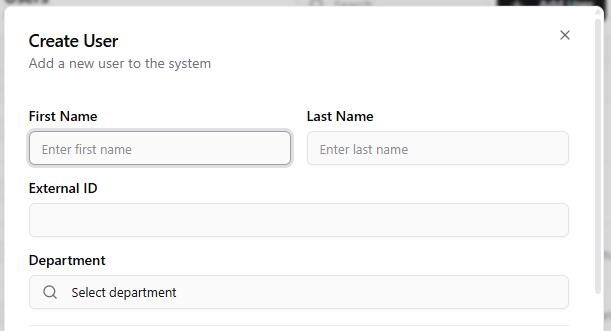
At the top of the form, fill in the person's identity:
-
First Name and Last Name — the display name.
-
External ID — optional identifier used to correlate the account with an external system (for example, an HR or directory ID).
-
Department — start typing to search; the picker loads departments on demand rather than listing them all, so it stays fast even with thousands of departments. A user belongs to a single department.
Adding Credentials
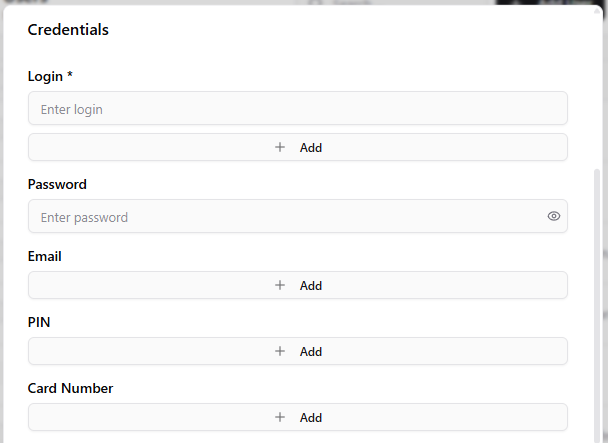
The Credentials section is where you define how the user signs in. Each credential type accepts multiple values — click Add beneath a field to add another entry (useful when a person carries two cards, or has both a primary and a secondary login).
|
Credential |
Purpose & Rules |
|---|---|
|
Login |
Required. The username used to sign in to the web UI and, optionally, at the device (e.g. |
|
Password |
Initial password for web sign-in. Leave blank when editing to keep the current password. It is optional — a user who only ever authenticates by card or PIN does not need one. |
|
|
Used for scan-to-email delivery and system notifications, such as a PIN sent by e-mail. |
|
PIN |
Numeric code for keypad authentication at the device. A PIN may contain digits only and is limited to 8 characters. |
|
Card Number |
The ID card used for tap-to-login at devices. |
Two safeguards apply automatically when you save:
-
Deduplication — repeated values within a field are collapsed, so accidentally entering the same card twice does not create a duplicate credential.
-
Cross-user uniqueness — a Login, PIN or Card Number already used by another account is rejected server-side with a clear error, preventing two people from sharing an identity.
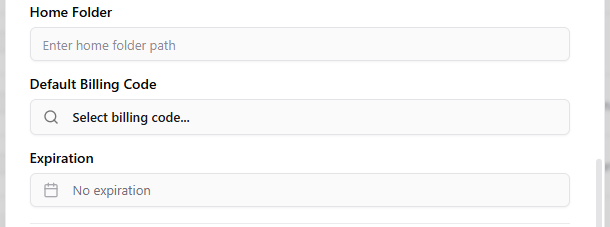
Home Folder and Default Billing Code
Below the credentials you can set two optional defaults:
-
Home Folder — a per-user path used by scan workflows that deliver to the user's home directory.
-
Default Billing Code (formerly Default Project) — start typing to search; the autocomplete only offers billing codes available to the user's effective groups, so you cannot assign a code the user would not be allowed to charge to. This value pre-selects a billing code for the user's jobs.
You can also set an Expiration date, after which the account is no longer valid.
Assigning Groups
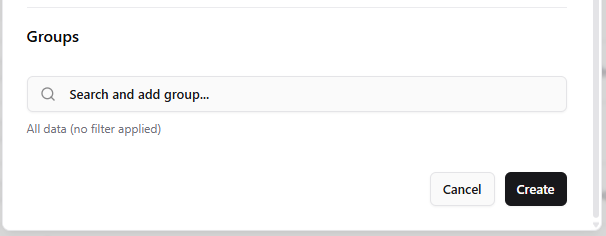
Scroll to the Groups section and search for the groups the user should belong to. Groups control access to scan workflows, print connectors and device features. The picker is a server-side search (add as many as needed); the implicit Everyone group is applied automatically and is not shown here. Click Create to save the account.
Verifying the New User
After saving, the new user appears in the Users list (itself a searchable, paginated view). To verify the account works:
-
Ask the user to sign in to the OptimiDoc web console with their Login and Password.
-
If a device terminal is available, the user can authenticate by tapping their ID card or entering their PIN.
Bulk Import Options
For organisations with many users, manual creation is not practical. OptimiDoc supports:
|
Method |
Description |
|---|---|
|
Synchronise users from LDAP, Azure AD or Google Directory with automatic attribute mapping. |
|
|
Upload a CSV file with user data for one-time or recurring imports. |
|
|
Schedule periodic imports to keep OptimiDoc user data up to date. |
In Summary
Create a user by opening Users → Add User, entering their name and department, then adding one or more Login, Email, PIN and Card credentials — remembering that PINs are digits-only up to 8 characters and that logins, PINs and cards must be unique across all users. Optionally set a Default Billing Code and Home Folder, assign the relevant Groups, and save. For anything beyond a handful of accounts, use Active Directory or CSV import instead.
Related Articles
-
Managing Users — full guide to user administration
-
Quick Start: Add a Device — add your first MFP
-
Departments — organise users into departments
-
Groups — control access with groups