
Every OptimiDoc Server installation requires a valid licence to unlock features beyond the evaluation period. From version 26.07 the licence is managed directly in the React administration UI: the Dashboard carries a dedicated Licence panel that both displays your current entitlements and launches the activation dialogue. This page explains how to activate a licence online or offline, how to read the licence details, and why the licence matters for the rest of the product.
How Licensing Works
An OptimiDoc licence is bound to a serial number issued by your reseller or directly by the vendor. The serial number looks like ODSX-XXXX-XXXX-XXXX. Activation exchanges that serial number for a signed licence that is stored on the server and read on every start-up.
The licence controls far more than a simple on/off switch — several parts of the product are gated by the capabilities it grants:
-
Device allowance — the maximum number of managed devices, broken down by device role (Full, Print-only, Capture-only, Network).
-
Feature capabilities — for example ABBYY OCR. When the licence does not include OCR, the ABBYY output formats are hidden in the Scan Workflow editor and only the built-in OptimiDoc OCR formats remain available.
-
OCR page credits — a consumable pool of OCR pages, where applicable.
-
Support expiry — the date until which updates and support are available.
Because these capabilities are evaluated live, the UI re-reads the licence whenever you open the Licence panel or complete a scan-workflow change, so newly activated features appear without a restart.
Activating Online
Use online activation when the OptimiDoc server has outbound internet access on port 443.
-
Sign in to OptimiDoc as an administrator. The root URL opens the React administration UI at the Dashboard.
-
Locate the Licence panel on the Dashboard. If the product is not yet activated, its status reads Inactive and an Activate Licence button is shown.
-
Click Activate Licence to open the Licence Activation dialogue.
-
Leave the activation type set to Online.
-
Type your serial number into the field (it is automatically upper-cased as you type).
-
Click Activate. OptimiDoc contacts the activation server, validates the serial number and stores the signed licence locally.
-
A confirmation toast appears and the Licence panel refreshes to show the licensee, licence type, support expiry and device allowance.
Activating Offline
If the server cannot reach the internet, use offline activation. This is a two-step exchange: the server produces a request code, and the activation portal returns a licence file (.lic).
-
In the Licence Activation dialogue, switch the activation type to Offline.
-
Enter your serial number and click Activate. Instead of contacting the server, OptimiDoc generates a request code and displays it in the dialogue. Use the copy button to place it on the clipboard.
-
On any computer with internet access, open the activation portal at partner.optimidoc.com and enter the request code together with your serial number.
-
The portal produces a licence file with the
.licextension. Download it and transfer it to a machine that can reach the OptimiDoc server. -
Back in the Licence Activation dialogue, drag the
.licfile onto the upload area (or click it to browse). Only files ending in.licare accepted. -
Click Upload & Activate. The licence is validated locally and the Dashboard reflects the updated status.
Reading the Licence Panel
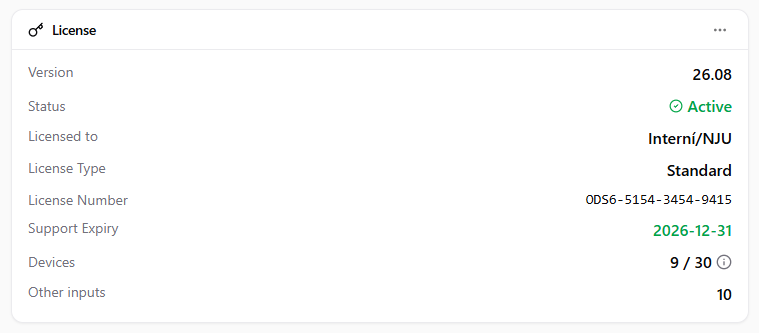
Once activated, the Licence panel on the Dashboard summarises your entitlements:
|
Field |
Description |
|---|---|
|
Version |
Installed OptimiDoc Server version (for example, 26.07). |
|
Status |
Active or Inactive indicator. |
|
Licensed to |
Organisation name associated with the licence. |
|
Licence Type |
Edition granted by the licence. |
|
Licence Number |
The activated serial/licence number. |
|
Support Expiry |
Date until which updates and support are available. Shown in green normally, amber when expiring within 30 days, and red once expired. |
|
Devices |
Devices in use versus the maximum allowed. When the licence splits the allowance by role, an information icon reveals a breakdown into Full, Print-only, Capture-only and Network devices. |
|
Other Inputs |
Additional non-device input channels included in the licence, where applicable. |
|
OCR Pages Remaining |
Remaining OCR page credits, where the licence uses a consumable pool. |
Refreshing and Deactivating
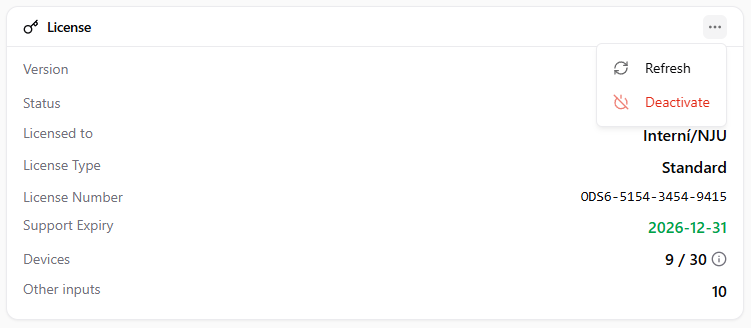
The Licence panel header carries two maintenance actions:
-
Refresh — re-synchronises licence data with the activation server, for example after a renewal or a device-count change. A toast confirms whether the refresh succeeded.
-
Deactivate — releases the licence from this server so the serial number can be re-activated elsewhere (for example, during a migration to a new server). Use this deliberately: the server returns to an unlicensed state until a licence is activated again.
Troubleshooting
|
Issue |
Resolution |
|---|---|
|
"Invalid serial number" error |
Verify the serial number is entered exactly as provided, with no leading or trailing spaces. It is stored upper-case. |
|
Online activation times out |
Confirm the server can reach the internet on port 443. If a proxy is in use, configure system-level proxy settings so the OptimiDoc application inherits them. |
|
Offline upload rejected |
Ensure the file you are uploading is the |
|
Device count exceeded |
Deactivate or remove unused devices under Managing Devices before adding new ones, or contact your reseller for a licence upgrade. |
In Summary
Licensing lives on the Dashboard. Activate online with just a serial number when the server has internet access, or offline by exchanging a request code for a .lic file at partner.optimidoc.com. The Licence panel then reports your entitlements — device allowance, support expiry and feature capabilities such as OCR — and lets you Refresh or Deactivate at any time. Because features are gated live by the licence, activating a new capability takes effect immediately across the UI.