
After installation and licence activation, sign in to the OptimiDoc administration UI to begin managing your print and scan environment. From version 26.07 the modern React interface is the default administration UI: opening the server's root address takes you straight to it. This page explains how to sign in, how sessions behave across browser tabs, and how to find your way around the navigation.
Signing In
-
Open a supported browser (Chrome, Edge or Firefox).
-
Navigate to the OptimiDoc URL -- typically
https://<server>:14266. The root address redirects to the React administration UI (served under/ui); if you are not yet signed in you land on the login page. -
Enter your Username and Password. Tick Remember me if you want the session to persist after the browser is closed.
-
Click Login. You are redirected to the Dashboard.
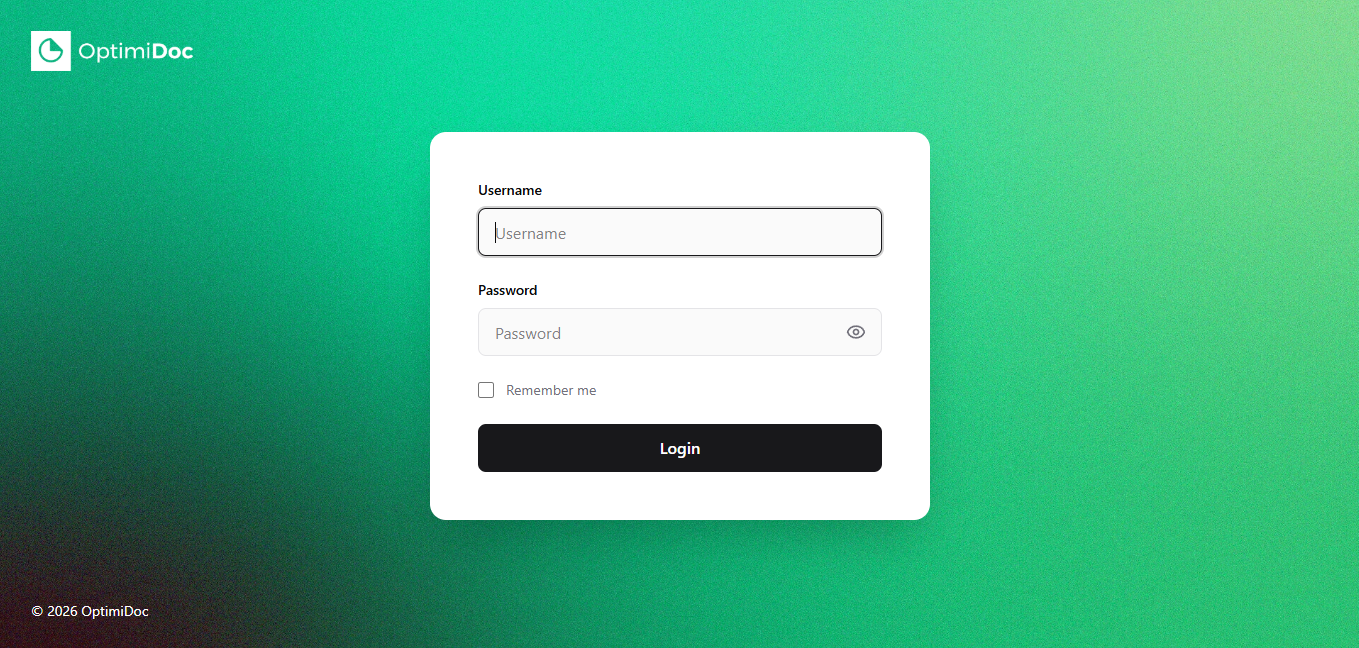
The login page is theme-aware and renders correctly in both light and dark mode. Where single sign-on is configured, the page also offers Microsoft and Google buttons and, for CAS environments, a Login with SSO button — these appear only when the corresponding provider is enabled in Authentication settings. If your organisation uses card-based authentication, tap or scan your card at the connected reader instead of typing credentials.
Where did the old interface go? The classic MVC administration UI has not been removed — it remains available at /old (which redirects to the legacy Dashboard). Almost all day-to-day administration now happens in the React UI documented throughout this space; the legacy UI is only referenced where a feature still lives exclusively there.
Staying Signed In Across Tabs
OptimiDoc keeps authentication consistent across every tab you have open:
-
Remember me — when ticked, your session is restored automatically on your next visit. If a remembered session is already active, OptimiDoc signs you straight in without briefly flashing the login form.
-
Synchronised login and logout — signing in or out in one tab is broadcast to the others, so you are never left with one tab logged in and another logged out.
-
Shared idle timer — extending a session (by staying active) is broadcast to sibling tabs so their inactivity timers reset together, rather than one tab timing out while another is still in use.
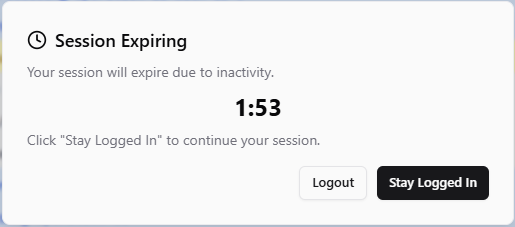
If you follow a bookmarked deep link to a page your account is not permitted to open, OptimiDoc signs you in and returns you to the Dashboard rather than showing an access-denied screen.
Main Navigation Sidebar
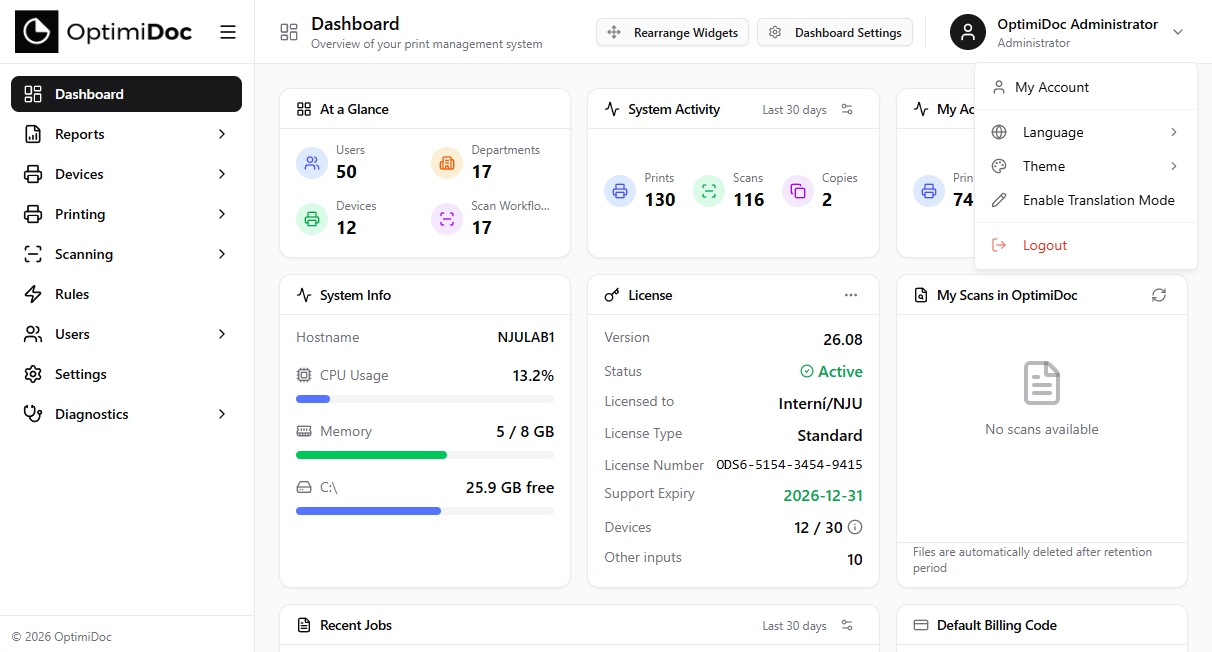
The left-hand sidebar provides access to every area of OptimiDoc. It can be collapsed to icons by clicking the Menu icon at the top; in collapsed mode, hovering a section opens its sub-pages in a fly-out. Sections that contain sub-pages are expandable -- click the section name to reveal its children.
|
Section |
Sub-Pages |
Description |
|---|---|---|
|
Dashboard |
-- |
Customisable widget-based home screen showing statistics, recent jobs, licence status and system health. |
|
Reports |
All Jobs, My Jobs, Activity Log, Reports, Auto Reports, Price Lists, Billing Codes |
Job reporting, analytics and cost-accounting tools. Billing Codes (formerly Projects) appears only when billing codes are enabled in Print settings. |
|
Devices |
Devices, Tags, SNMP Configuration, Device Monitoring, Notifications |
Register, configure and monitor multifunction devices. |
|
Printing |
Print Connectors, Driverless Print, Quotas, Quota History |
Manage print input channels and cost-control quotas. The Quotas items appear only when quotas are enabled. |
|
Scanning |
Scan Flows, Destinations, Scan Parameters |
Configure scan workflows, output destinations and scanning parameters. |
|
Rules |
-- |
Create business rules that route, modify or restrict jobs automatically. |
|
Users |
Users, Departments, Groups, User Import, Mass Operations |
Manage user accounts, organisational structure and bulk operations. |
|
Settings |
-- |
System configuration: Mail, Print, Scan, Authentication, Appearance, FTP and Cluster. |
|
Diagnostics |
Active Users, Audit Log, System Logs, Unauthorised Accesses, Cluster Nodes, GDPR, Maintenance, Encryption |
Server health, audit logs, encryption management and compliance tools. |
Role-Based Visibility
Not every user sees all sidebar sections. Menu items are filtered by the signed-in user's role, so lower-privilege accounts see a shorter menu:
|
Role |
Typically Sees |
|---|---|
|
Admin |
All sections. |
|
Manager |
Dashboard; Reports (My Jobs, Activity Log, Reports, Auto Reports). |
|
LocalAdmin |
Dashboard; Devices (Devices, Device Monitoring); Reports (My Jobs, Activity Log, Reports). |
|
Regular user |
Dashboard; Reports (My Jobs, Activity Log, Reports). |
Role-Based Default Dashboards
The Dashboard opens with a default widget layout chosen for the account type: administrators receive a management-oriented layout (system-wide statistics, device and licence status), while regular users receive a personal layout focused on their own jobs. The layout is fully customisable per user — see Customising Dashboard Widgets.
User Menu
Click the user avatar in the top-right corner of the page to open the user menu. From here you can:
-
My Account -- open your personal account page to review credentials, change your PIN or password and manage a personal certificate.
-
Language -- choose between English, Czech, German, French and Polish. The selection is stored locally in the browser.
-
Theme -- switch between Light, Dark, the branded OptimiDoc theme, a Pink theme and a Custom theme.
-
Translation mode (administrators only) -- toggle an in-place editing overlay for reviewing and adjusting interface texts.
-
Logout -- end the current session and return to the login page.
Page Header
Each page displays a header bar containing:
-
An icon and title identifying the current page.
-
A description summarising the page purpose.
-
Action buttons relevant to the page (for example, an Add button on the Devices or Users page, or export and refresh controls on report pages).
Next Steps
Once you are comfortable with the navigation, proceed to the quick-start guides: