
The SharePoint Online destination uploads scanned documents to a Microsoft 365 SharePoint document library through the Microsoft Graph API, using interactive OAuth 2.0 with an Azure AD application. It suits cloud-only and hybrid environments without on-premises infrastructure.
How It Works
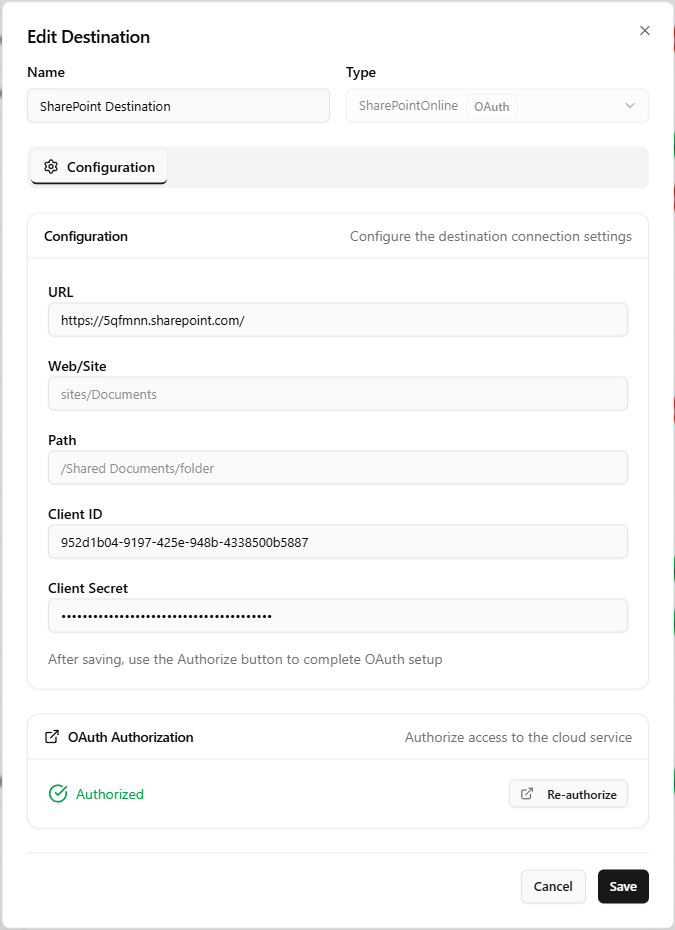
SharePoint Online is a delivery-only destination built on Microsoft Graph (v5). You register an Azure AD application, enter its Client ID and Client Secret, then authorise OptimiDoc interactively. OptimiDoc stores the OAuth tokens with the destination and rotates the refresh token automatically, so the connection keeps working after the initial authorisation. Each output document is uploaded to the site and library identified by URL, Web, and Path; target folders are created automatically when they do not yet exist.
When the scan template produces document metadata, OptimiDoc writes it to the matching SharePoint library columns. Date and time metadata is parsed and written to SharePoint date columns in the correct format.
Configuration Fields
|
Field |
Description |
|---|---|
|
URL |
Root URL of your SharePoint Online tenant, e.g. |
|
Web/Site |
Server-relative path to the site, e.g. |
|
Path |
Document library and folder within the site, e.g. |
|
Client ID |
Application (client) ID of the Azure AD app registration used for authentication. |
|
Client Secret |
Client secret generated for the Azure AD application. |
Azure AD Application Setup
-
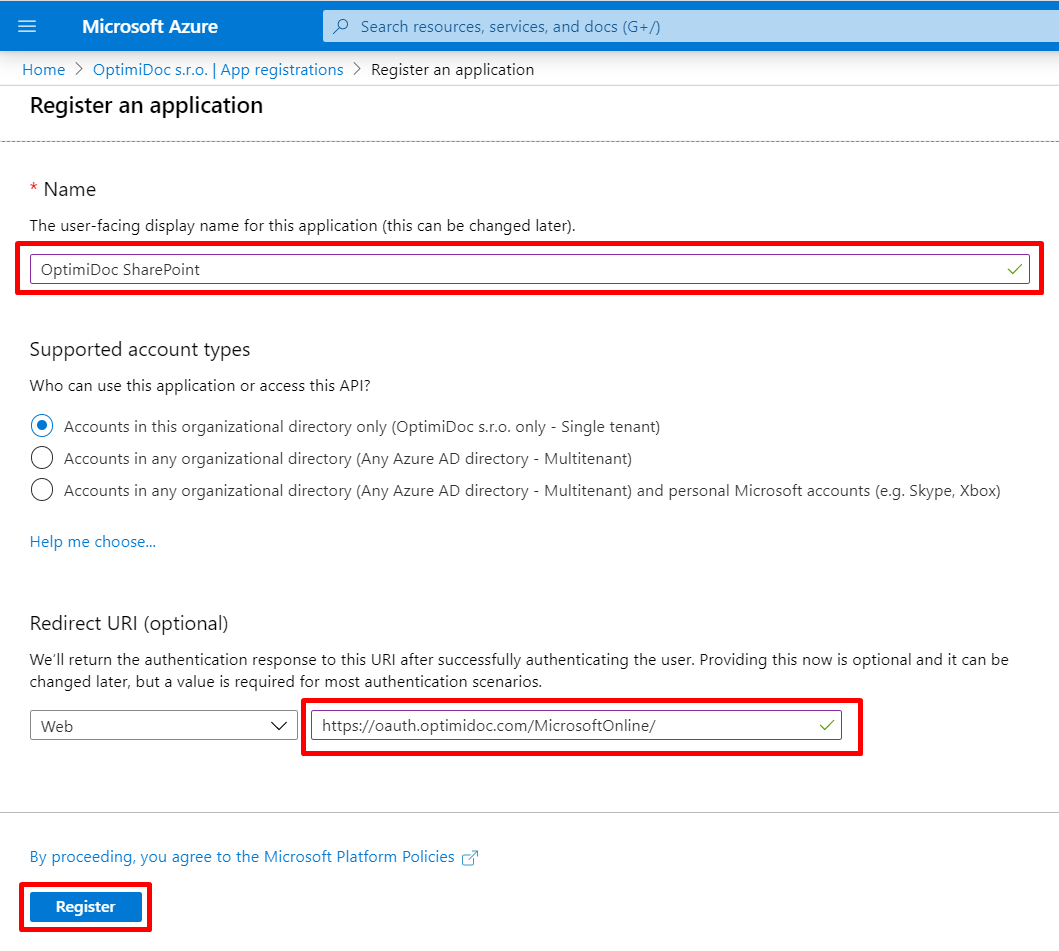
In the Azure Portal, go to App registrations > New registration and set the supported account types for your organisation.
Redirect URI: https://oauth.optimidoc.com/MicrosoftOnline/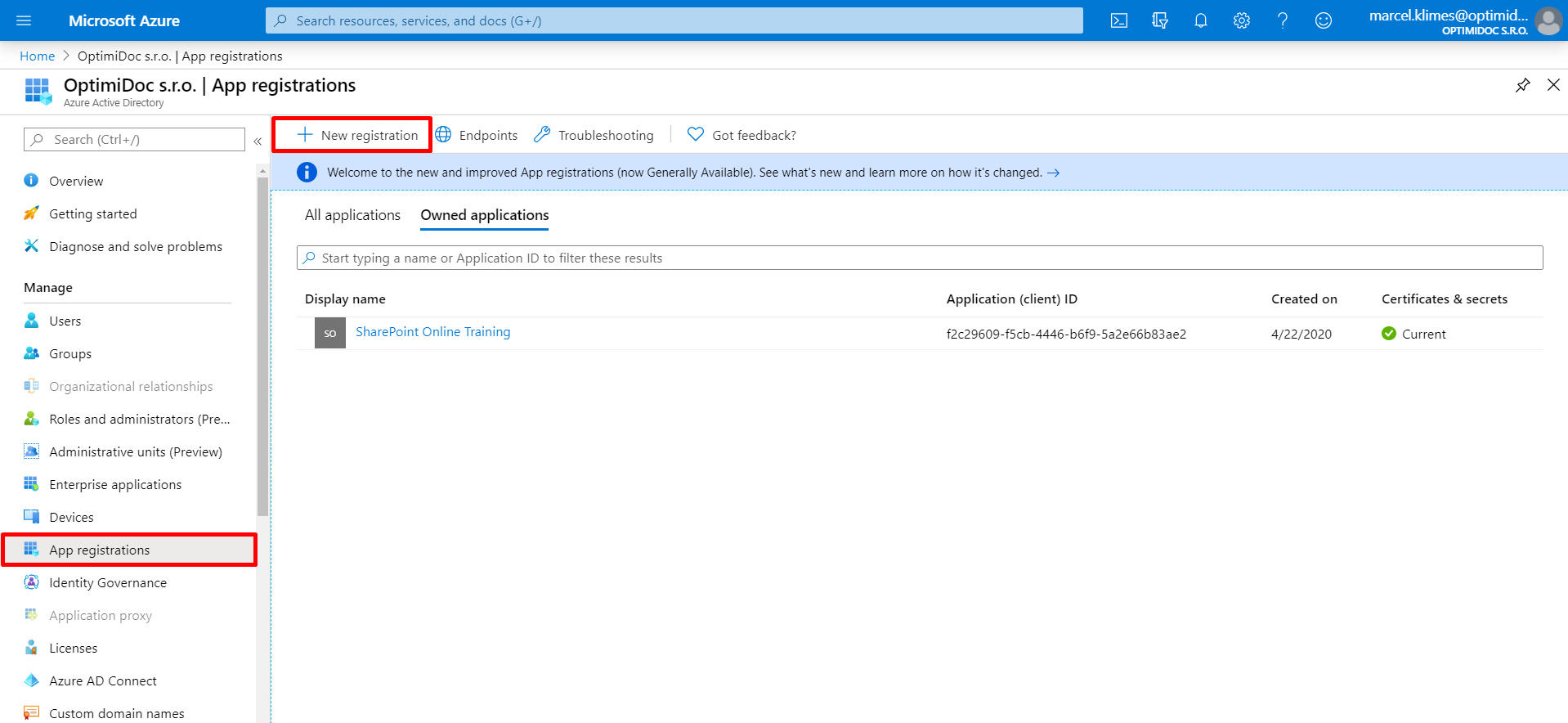
-
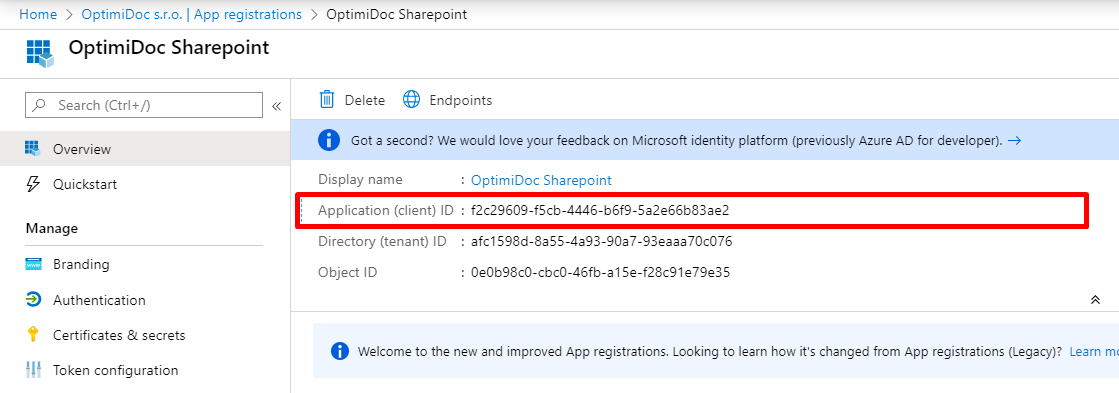
Note the Application (client) ID.
-
Under Certificates & secrets, create a Client secret and copy its value immediately.

-
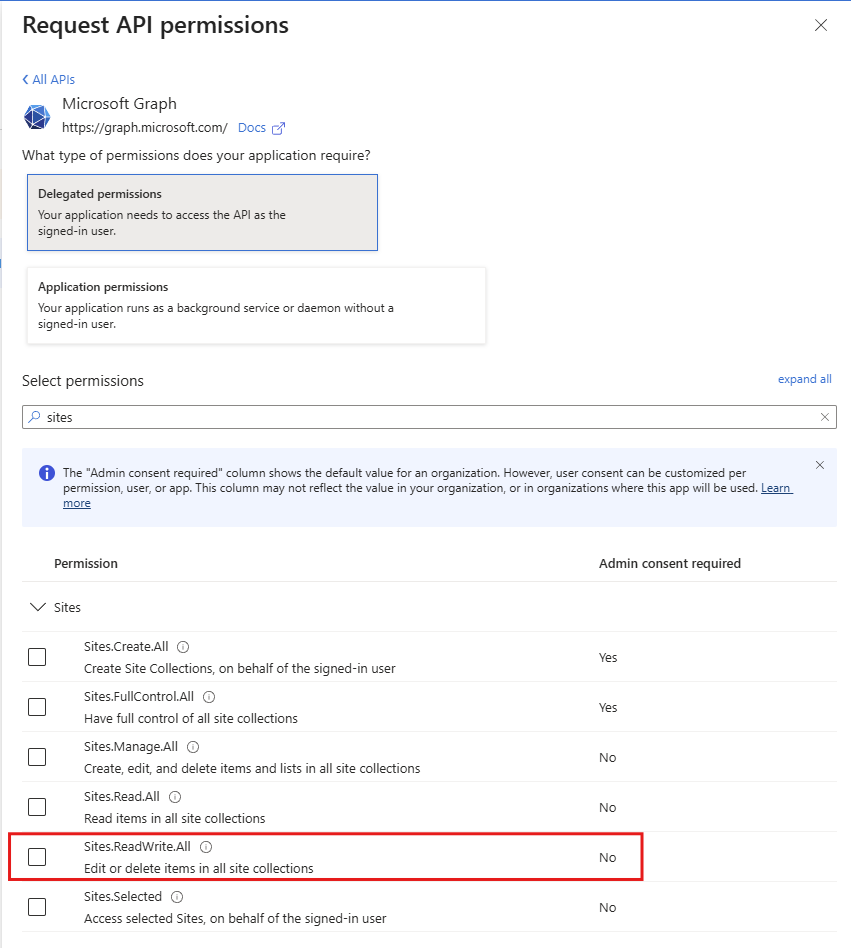
Under API permissions, add Microsoft Graph Sites.ReadWrite.All and click Grant admin consent.
-
Enter the Client ID and Client Secret into the destination, then authorise OptimiDoc (below).
Authorising the Connection
-
Enter the fields above and Save the destination.
-
Re-open the destination. An OAuth Authorization card shows the current status (Not authorized or Authorized).
-
Click Authorize. OptimiDoc redirects your browser to Microsoft's consent page; after you grant access you are returned to OptimiDoc and the tokens are stored with the destination.
-
Once authorised, use Test Connection to confirm access. Test Connection is hidden until the destination is authorised.
Use Re-authorize to refresh access, or Revoke authorization to clear the stored tokens. Revoking removes only OptimiDoc's local copy of the tokens -- the remote provider is not contacted -- and preserves the configuration, so the destination returns to the Not authorized state until you authorise it again.
Configuration Examples
|
Scenario |
URL |
Web/Site |
Path |
|---|---|---|---|
|
Main site document library |
|
(empty) |
|
|
Team site with subfolder |
|
|
|
|
Specific team library |
|
|
|
SharePoint Online vs On-Premises SharePoint
|
Feature |
SharePoint Online |
SharePoint (On-Premises) |
|---|---|---|
|
Authentication |
Azure AD OAuth 2.0 (Client ID / Secret + interactive authorisation) |
Windows authentication (Login / Password / Domain) |
|
URL format |
|
|
|
Infrastructure |
Microsoft 365 cloud |
On-premises server |
|
API |
Microsoft Graph (v5) |
SharePoint CSOM / REST |
Choose SharePoint Online for Microsoft 365 environments; use the on-premises SharePoint destination only for SharePoint Server installations.
Troubleshooting
|
Issue |
Possible Cause |
Resolution |
|---|---|---|
|
Authorisation / 401 error |
Invalid or expired Client ID / Secret |
Verify the credentials; regenerate the client secret if it has expired, then re-authorise |
|
403 Forbidden |
Missing Graph permission |
Ensure Sites.ReadWrite.All is granted with admin consent |
|
Site not found |
Incorrect URL or Web/Site |
Verify the full site URL is reachable in a browser |
|
Metadata not written to a column |
Column name mismatch or unsupported type |
Ensure the metadata field name matches the library column; date values must map to a SharePoint date column |
Related Articles
-
SharePoint Destination -- On-premises SharePoint Server
-
OneDrive Destination -- Alternative Microsoft cloud destination
-
Output Options -- Filename patterns resolved at scan time
-
Scan Destinations Overview -- All available destination types