
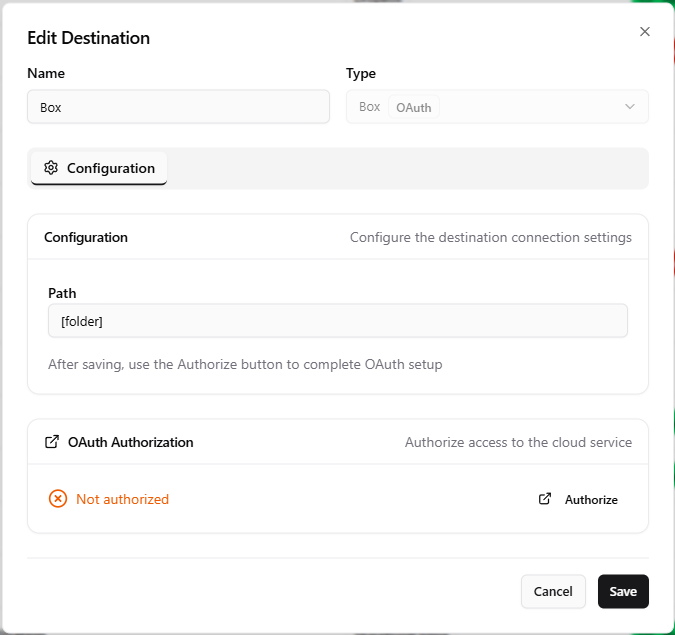
The Box destination uploads scanned documents to a folder in a Box account using OAuth 2.0. Configuration is minimal -- specify the target folder, then authorise OptimiDoc to access the account.
How It Works
Box is a delivery-only destination. OptimiDoc uploads each output document to the folder given in Path. Authentication uses OAuth 2.0 through OptimiDoc's built-in Box application, so you do not register your own Box app or enter client keys -- you only authorise access. OptimiDoc stores the resulting access and refresh tokens with the destination and refreshes them automatically, so the connection keeps working after the initial authorisation.
Configuration
|
Setting |
Description |
|---|---|
|
Path |
Target folder path within Box where documents are uploaded (e.g. |
Filename placeholders can be used to organise uploads within the target folder. See Output Options.
Authorising the Connection
-
Enter the Path and Save the destination.
-
Re-open the destination. An OAuth Authorization card shows the current status (Not authorized or Authorized).

-
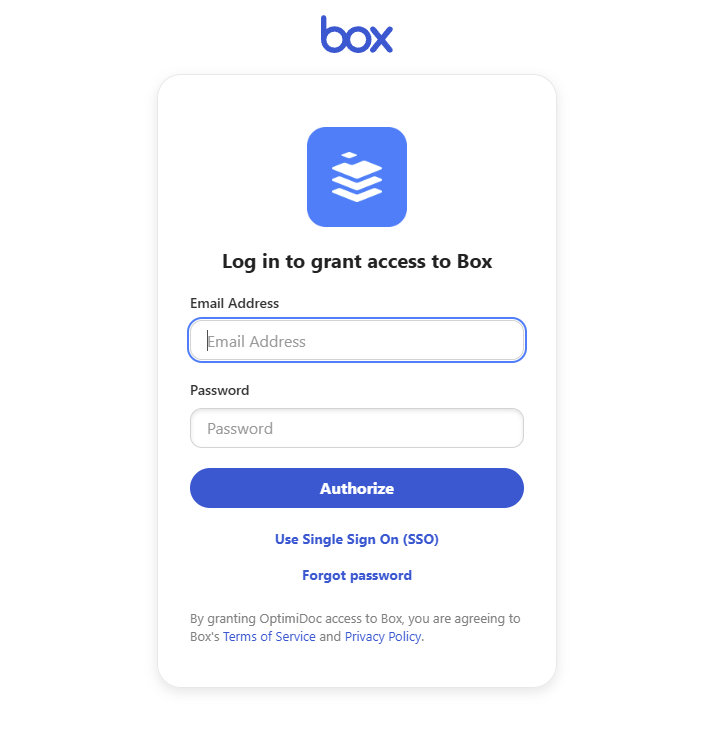
Click Authorize. OptimiDoc redirects your browser to Box's consent page; after you grant access you are returned to OptimiDoc and the tokens are stored with the destination.
-
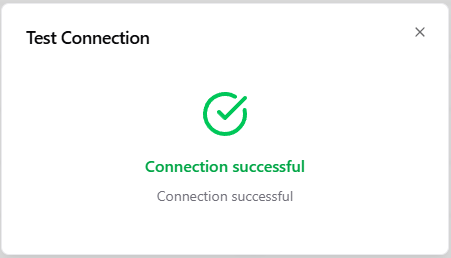
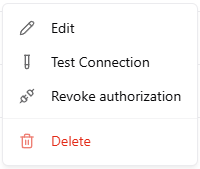
Once authorised, use Test Connection to confirm access. Test Connection is hidden until the destination is authorised.
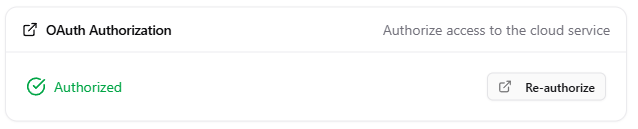
Use Re-authorize to refresh access, or Revoke authorization to clear the stored tokens. Revoking removes only OptimiDoc's local copy of the tokens -- the remote provider is not contacted -- and leaves the Path intact, so the destination simply returns to the Not authorized state until you authorise it again.
Troubleshooting
|
Issue |
Possible Cause |
Resolution |
|---|---|---|
|
Not authorized |
Authorisation never completed or tokens were revoked |
Open the destination and click Authorize to complete the OAuth flow |
|
Upload failed |
File exceeds the Box plan's per-file size limit |
Check your Box plan's file-size limit |
|
Permission denied |
The authorised Box user lacks access to the target folder |
Grant the user collaborator access to the folder, or choose a folder they own |
Related Articles
-
Dropbox Destination -- Alternative cloud storage destination
-
Google Drive Destination -- Alternative cloud storage destination
-
Output Options -- Filename patterns resolved at scan time
-
Scan Destinations Overview -- All available destination types