
The Folder destination saves scanned documents to a local or network file-system folder. It supports UNC paths, DFS namespaces, optional Windows credentials for network shares, and dynamic subfolders driven by filename placeholders.
How It Works
The Folder destination writes each output document to the directory given in Path. The path can be local (C:\Scans) or a UNC network share (\\server\share\folder). When credentials are supplied, OptimiDoc mounts the share with a Windows net use connection using the account and the Login Format you choose; when DFS Path is enabled, OptimiDoc resolves the DFS namespace to its underlying target before writing. Missing folders in the path are created automatically, provided the account has permission.
Folder is also available on the device panel for browsing and as a print-delivery target; this page covers its use as a scan destination.
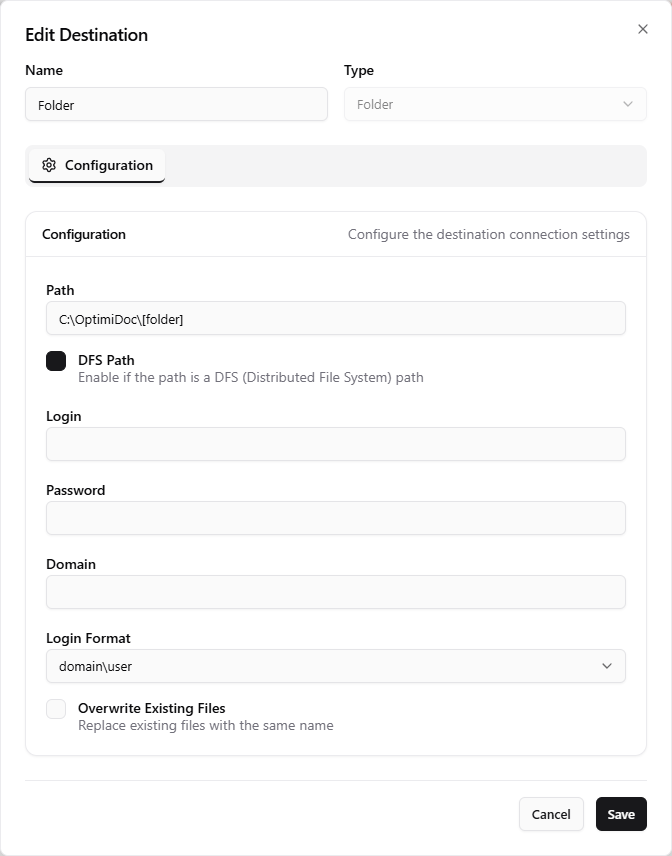
Configuration
|
Setting |
Description |
|---|---|
|
Path |
Target folder -- local ( |
|
DFS Path |
Enable when the path points to a DFS (Distributed File System) namespace. |
|
Login |
User name for network-share authentication (optional for open shares). |
|
Password |
Password for network-share authentication. |
|
Domain |
Windows domain used for authentication. |
|
Login Format |
How credentials are presented to net use: |
|
Overwrite Existing Files |
When enabled, a file with the same name is replaced; when disabled, existing files are not overwritten. |
Dynamic Subfolders
The Path accepts the same placeholders as the output filename, so you can route scans into per-user or per-date subfolders -- for example \\server\scans\{user}\{date} or \\server\scans\{param:Department}. Intermediate folders are created on demand. See Output Options for the full placeholder list.
Best Practices
-
Use UNC paths rather than mapped drive letters -- mapped drives are per-user and unreliable in a Windows service context.
-
Grant the OptimiDoc service account (or the configured Login) read/write access to the target share.
-
Include
{user}or{date}in the path so a single folder does not accumulate thousands of files. -
Use Login Format
user@domainwhen the share expects UPN-style credentials, otherwise the defaultdomain\user.
Related Articles
-
Email Destination -- Send scans as e-mail attachments
-
FTP Destination -- Upload over FTP/FTPS
-
Output Options -- Filename patterns resolved at scan time
-
Scan Destinations Overview -- All available destination types