
The Google Drive destination uploads scanned documents to Google Drive using OAuth 2.0. Register an OAuth client in Google Cloud, authorise OptimiDoc once, and scans are delivered to a folder in the connected Drive account.
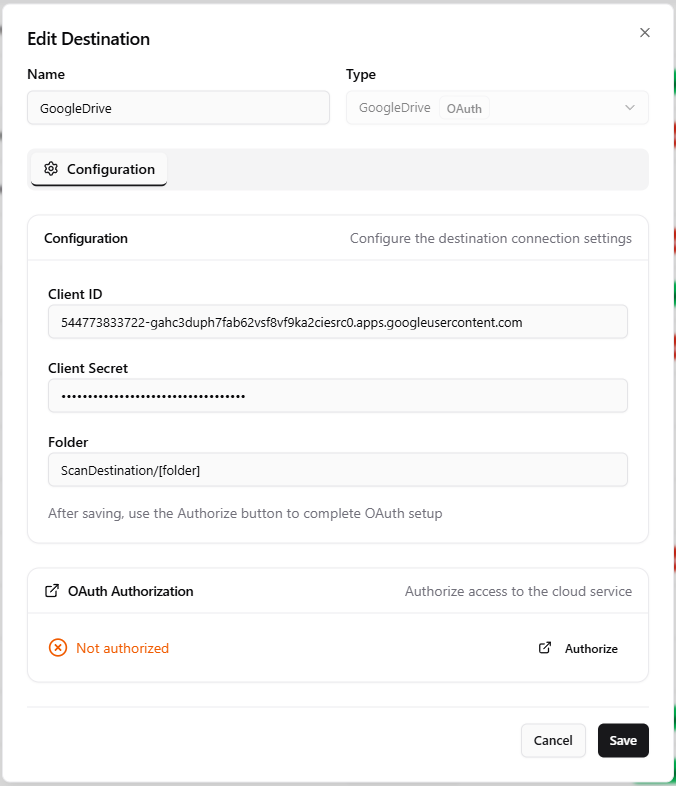
How It Works
Google Drive is a delivery-only destination. OptimiDoc uploads each output document to the folder named in Folder using the Google Drive API. Authentication uses OAuth 2.0: after you authorise the connection once, OptimiDoc stores a refresh token and uses it to obtain fresh access tokens automatically, so the destination keeps working without repeated sign-ins.
Configuration
|
Setting |
Description |
|---|---|
|
Client ID |
OAuth 2.0 client ID from the Google Cloud console. |
|
Client Secret |
OAuth 2.0 client secret paired with the client ID. |
|
Folder |
Name of the target folder in Google Drive (e.g. |
Note: From the release following 26.07 the form shows only the fields above; Google Drive authentication is OAuth 2.0 only. In 26.07 and earlier the form also displayed a Service Account Email field that had no effect.
Google Cloud Setup
-
Create (or select) a project in the Google Cloud console.
-
Enable the Google Drive API for the project.
-
Create an OAuth 2.0 Client ID of type Web application.
-
Add your OptimiDoc server's OAuth callback URL as an authorised redirect URI.
-
Copy the generated Client ID and Client Secret into the destination configuration.
Authorising the Connection
OAuth destinations are authorised interactively after they are created:
-
Enter the Client ID, Client Secret, and Folder, then Save.
-
Re-open the destination. An OAuth Authorization card shows the current status (Not authorized or Authorized).
-
Click Authorize. OptimiDoc redirects your browser to Google's consent page; after you grant access you are returned to OptimiDoc and the refresh token is stored with the destination.
-
Once authorised, use Test Connection to confirm access. Test Connection is hidden until the destination is authorised.
Use Re-authorize to refresh access, or Revoke authorization to clear the stored tokens. Revoking removes only OptimiDoc's local copy of the tokens -- the remote provider is not contacted -- and leaves the rest of the configuration intact, so the destination simply returns to the Not authorized state until you authorise it again.
When to Use
Use Google Drive for organisations standardised on Google Workspace. For Microsoft 365 use OneDrive or SharePoint Online; for other consumer or team cloud storage use Dropbox or Box.
Related Articles
-
Dropbox Destination -- Alternative cloud storage destination
-
OneDrive Destination -- Microsoft cloud storage destination
-
Output Options -- Filename patterns resolved at scan time
-
Scan Destinations Overview -- All available destination types