
-
Login to the Azure Management Portal - https://portal.azure.com/#
-
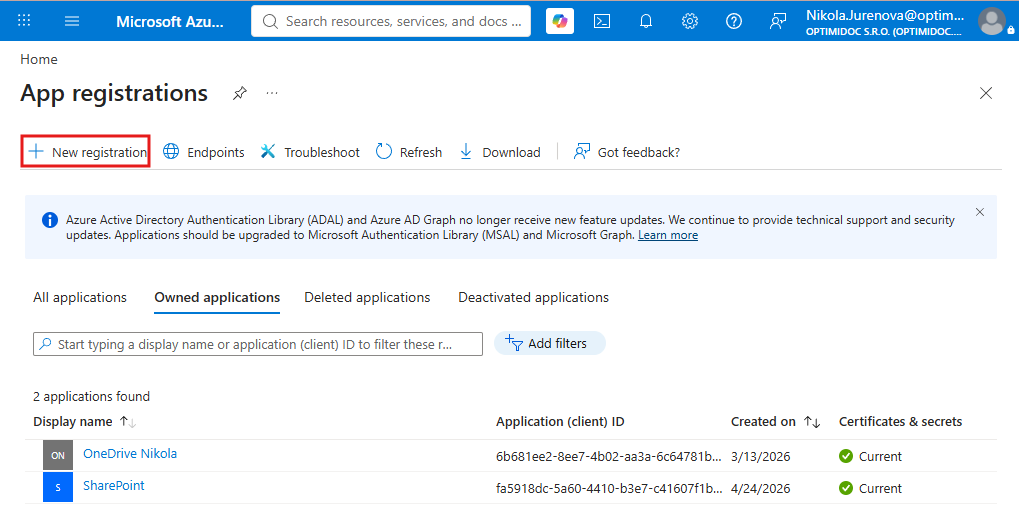
Go to the Azure Active Directory section > App Registrations and click on New registration.
-
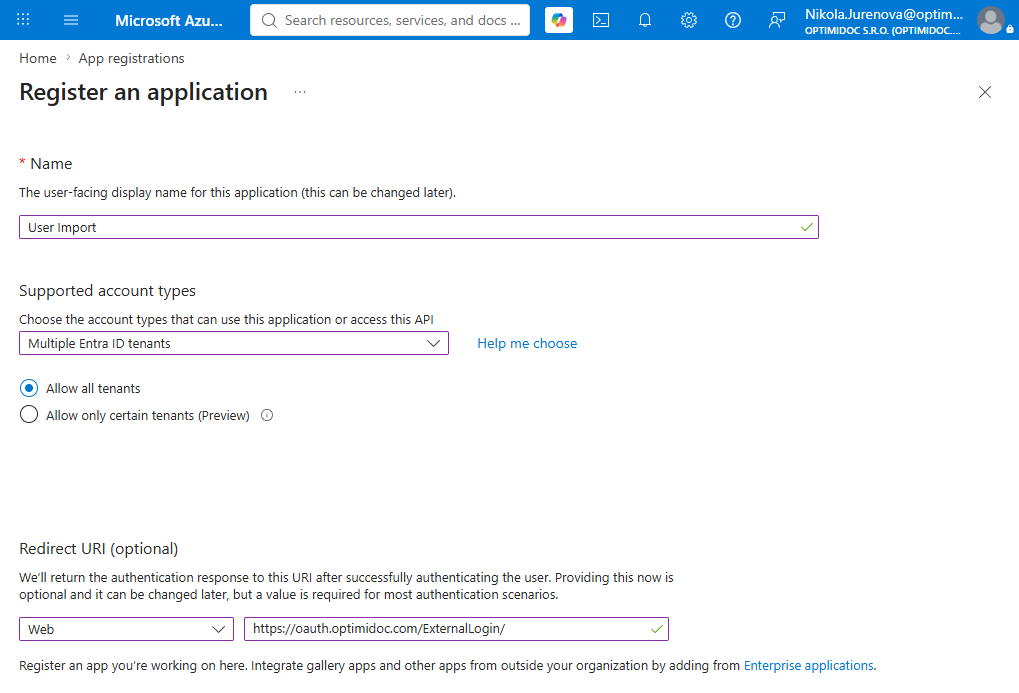
Enter the application name and Redirect URIs:
https://oauth.optimidoc.com/ExternalLogin/
https://oauth.optimidoc.com/MicrosoftOnline/
-
After creating the application, go to API permissions > Add a permission and search for Microsoft Graph.
-
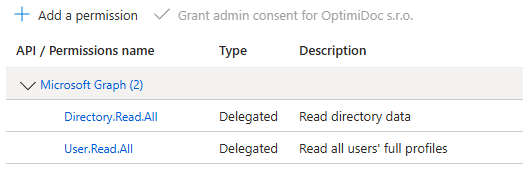
Select it and in permissions select rights based on the image below and click on Select.
-
Now, when you have finished with application registration you can copy client ID and secret to OptimiDoc.
-
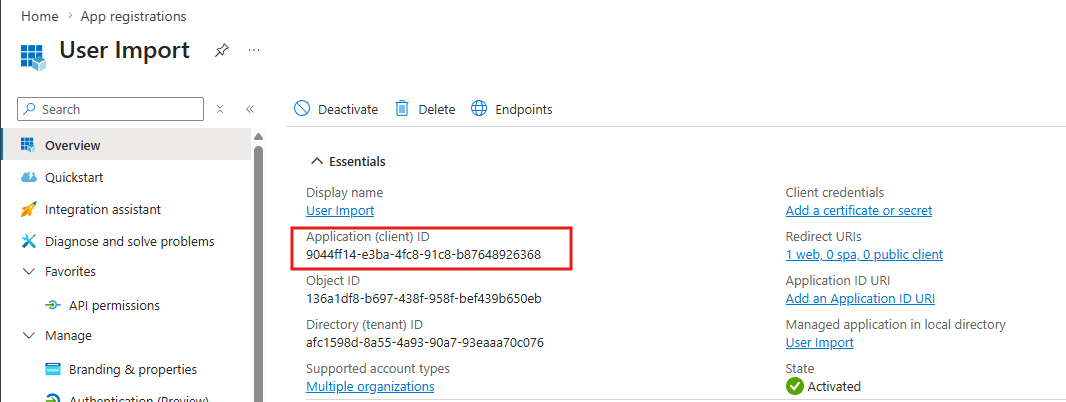
Copy the Client ID -> Copy your Application ID and paste into the field "Client ID".
-
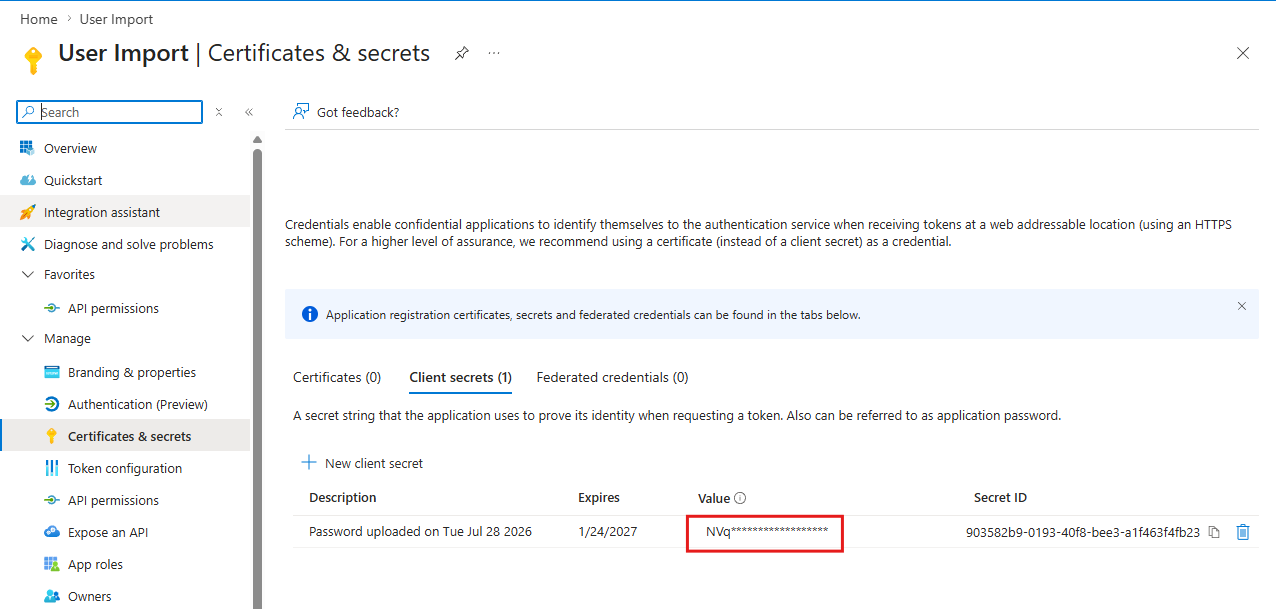
Add a Client Secret -> Certificates & secrets -> New client secret -> fill in description -> click Add and copy key Value (not the Secret ID) -> paste key Value into "Client Secret" -> then click Save
-
Then authorize access by clicking on the Unauthorized button. This will let you to authorize using your Azure account and accept permissions. Once authorized, the button will change to grey Authorized button.