
This reference page describes every dashboard widget available in OptimiDoc Server, including its purpose, the information it displays, its audience, and any configuration options. The current release ships fifteen widgets.
How Dashboard Widgets Work
Every user builds their own dashboard from the same catalogue of widgets, but not all widgets are offered to everyone:
-
Administrator-only widgets — At a Glance, System Info, License, Database Info and System Activity expose system-wide information and are hidden from regular users.
-
Feature-dependent widgets — Default Billing Code only appears when Billing Codes are enabled, and My Quota only when Quotas are enabled.
-
Everything else is available to every signed-in user.
Widgets can be shown or hidden, resized between the sizes listed below, and dragged around a 4- or 6-column grid. A few widgets carry their own inline controls — for example, the activity and jobs widgets let you change the history period, and the License widget offers refresh and deactivate actions. See Customising Dashboard Widgets for how to manage your layout.
Administration and Monitoring Widgets
Visible to administrators only.
At a Glance
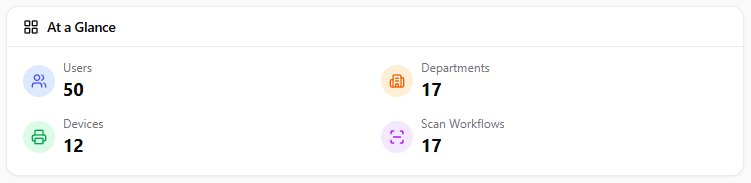
Four headline counts for the whole system — Users, Departments, Devices and Scan Workflows. Each tile is clickable and jumps straight to the matching management page, so it doubles as a quick navigation shortcut. Sizes: 2×2 (default), 3×1, 4×1.
System Info
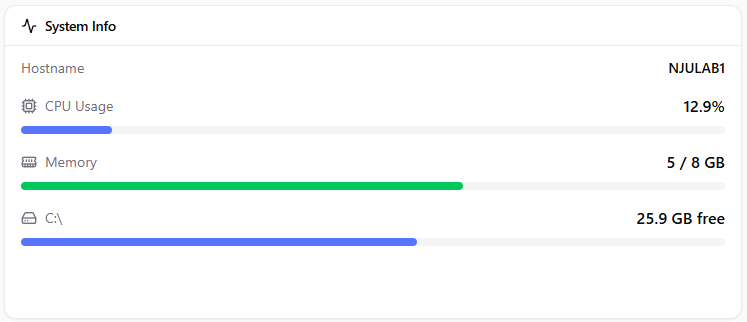
Live health of the server that hosts OptimiDoc: hostname, CPU usage, memory used / total, and free space for each disk, with colour-coded bars that turn orange above 70% and red above 90%. Sizes: 2×3 (default), 2×4, 3×4.
License
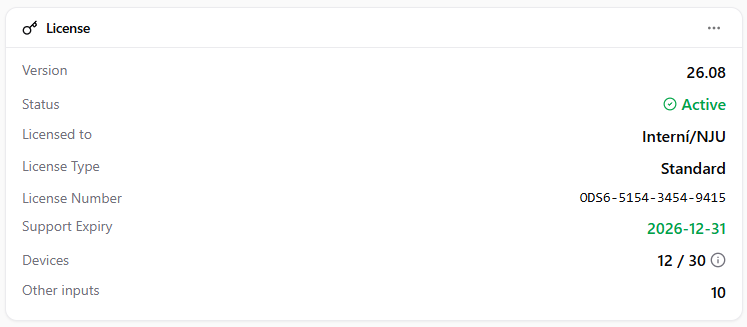
The current licence at a glance: version, status (Active / Not activated), licensed to, licence type, licence number and support expiry (colour-coded as the expiry approaches). It also shows devices used / device limit with a breakdown tooltip for Full, Print, Capture and Network licences, plus other inputs and OCR pages remaining. From the widget menu an administrator can Refresh the licence against the activation server or Deactivate it; when no licence is active, an Activate License button opens the online/offline activation dialog. Sizes: 2×3 (default), 2×4, 3×4.
Database Info
The server name, database name and database size of the OptimiDoc database — the same figures reported on the Maintenance page. Sizes: 2×1 (default), 2×2, 3×1.

System Activity
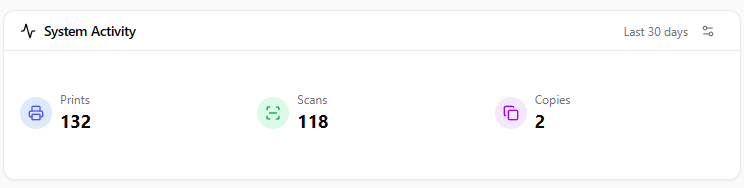
Organisation-wide Prints, Scans and Copies totals over a configurable history period (1, 3, 7, 14 or 30 days; 30 by default). Sizes: 2×1 (default), 2×2, 3×1.
Activity, Jobs and Personal Widgets
Available to all users.
My Activity
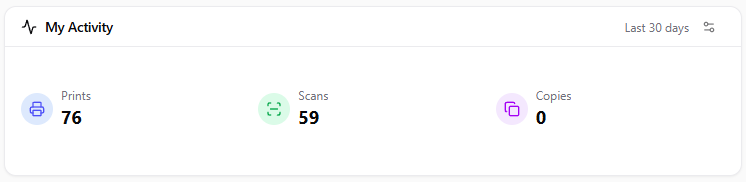
The signed-in user's own Prints, Scans and Copies totals over a configurable history period (30 days by default). Sizes: 2×2 (default), 2×1, 3×1.
Recent Jobs / My Recent Jobs
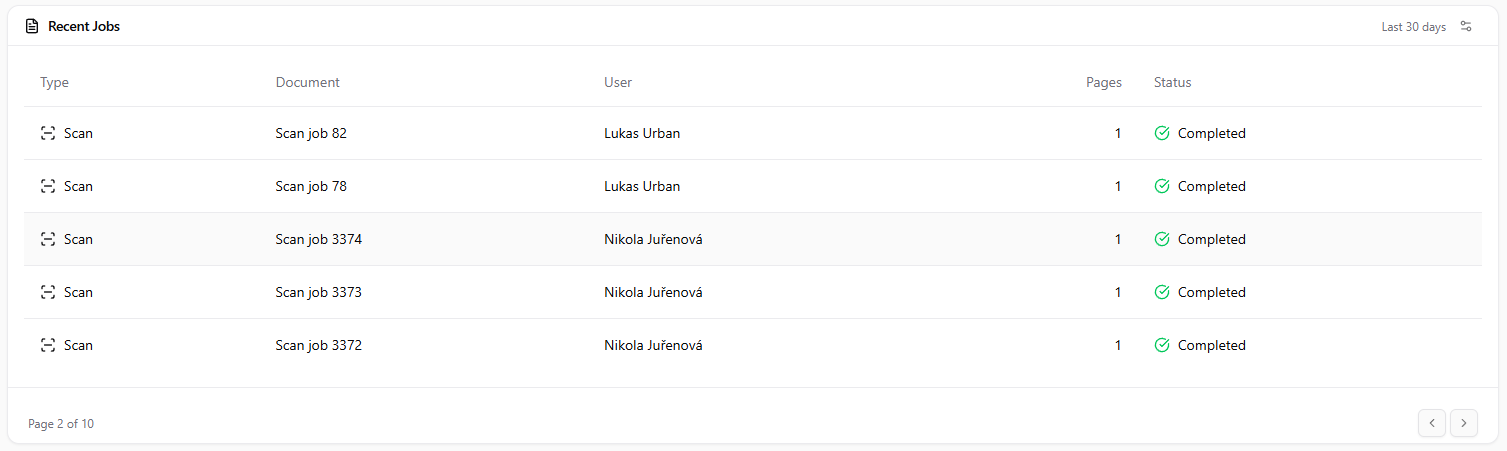
A paged table of recent jobs (five rows per page). For administrators it is titled Recent Jobs and lists jobs from every user, including a User column; for regular users it is titled My Recent Jobs and shows only their own jobs. Columns: Type (print/scan/copy icon), Document, User (administrators only), Pages and Status. A history-period selector controls how far back it looks (1 day by default). Sizes: 4×4 (default), 6×4, 6×5.
My Scans in OptimiDoc
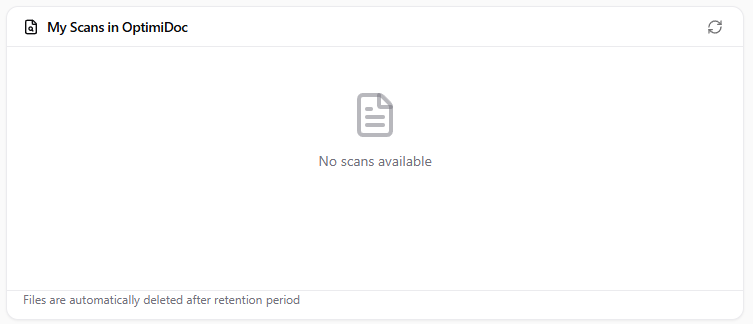
Documents the user has scanned to their personal OptimiDoc inbox (the Scan2OptimiDoc destination). Lists filename, date and size, with buttons to download or delete each file and a refresh control. A note reminds users that files are removed automatically after the retention period. Sizes: 2×4 (default), 3×4, 4×4.
My Quota
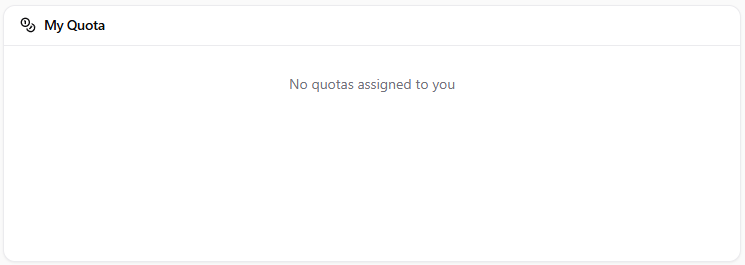
The user's own quota balances, each with remaining amount, a used/total progress bar, and a warning icon once usage passes 90%. Hard quotas are badged so users can tell them apart from soft quotas. Requires the Quotas feature. Sizes: 2×3 (default), 2×4, 3×3.
Default Billing Code
Lets the user choose their default billing code from the codes they are allowed to use and save it, so subsequent jobs are billed to the right code without re-selecting it each time. Requires Billing Codes to be enabled. Sizes: 2×1 (default), 2×2, 3×2.

Self-Service Action Widgets
Available to all users.
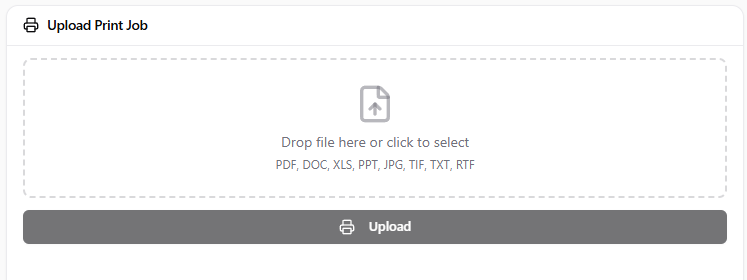
Upload Print Job
Drag and drop (or browse for) one or more documents to send straight to the print spooler for release later at any device. Accepts PDF, DOC, DOCX, XLS, XLSX, PPT, PPTX, JPG, TIF, TXT and RTF, up to 50 MB per file, and uploads them one after another with progress feedback. Sizes: 2×3 (default), 2×4, 3×3.
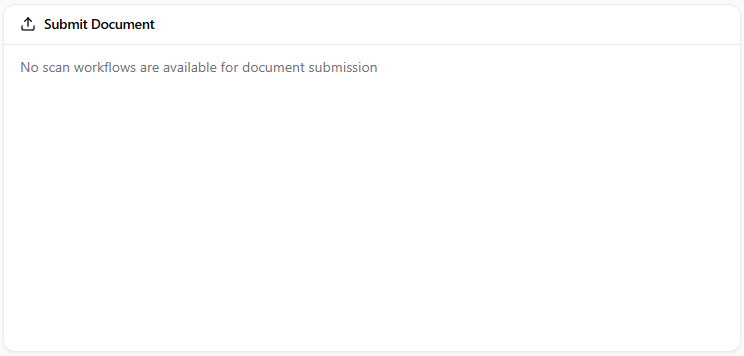
Submit Document
Upload a single document (PDF, JPG or TIF, up to 50 MB) and run it through a chosen scan workflow — the file receives the same processing, OCR and delivery a device scan would, without walking to an MFD. Sizes: 2×4 (default), 2×5, 3×4.
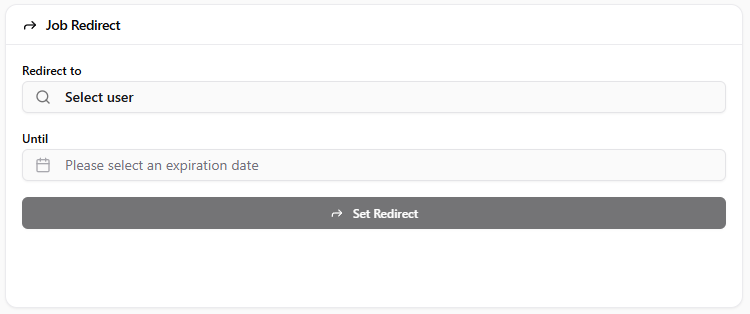
Job Redirect
Redirect the user's incoming print jobs to a colleague until a chosen expiry date — useful when covering for someone on leave. The target user is chosen with a type-ahead search, the widget shows an Active badge while a redirect is in force, and it can be cancelled at any time. Sizes: 2×3 (default), 2×4, 3×3.
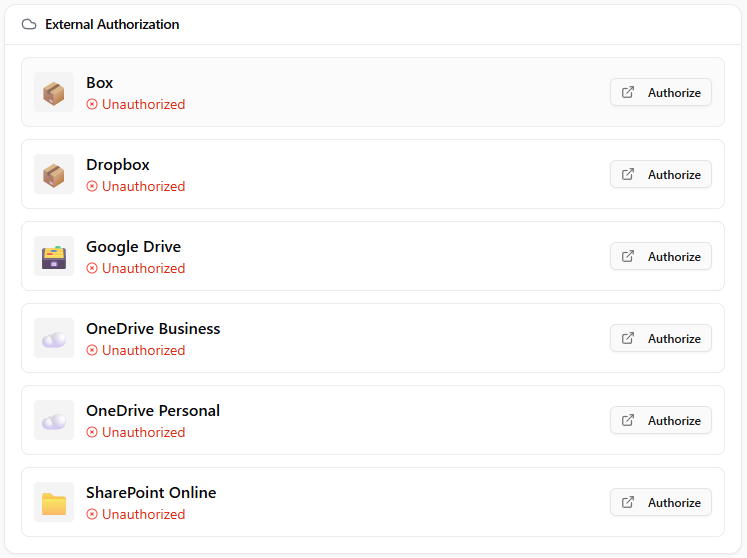
External Authorization
Shows the user's OAuth authorisation status for cloud storage services — Google Drive, OneDrive Personal, OneDrive Business, SharePoint Online, Dropbox and Box — with Authorize and Revoke actions. Authorising here lets scan workflows deliver documents to the user's personal cloud storage. Sizes: 2×3 (default), 2×4, 3×4.
Printer Installer
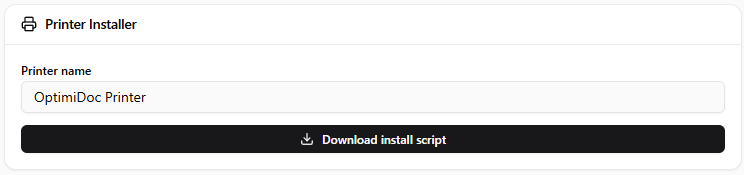
Generates and downloads a Windows .cmd script that installs an IPP printer pointing at the current server. The script tries IPPS first and falls back to IPP (port 631, path /ipp/print); run it as Administrator on the target PC. Sizes: 2×2 (default), 2×3, 3×2.
Widget Summary Table
|
Widget |
Purpose |
Audience |
Configurable |
|---|---|---|---|
|
At a Glance |
System entity counts (clickable) |
Admin |
Size |
|
System Info |
Host CPU / memory / disk |
Admin |
Size |
|
License |
Licence status and device usage |
Admin |
Refresh / deactivate / activate |
|
Database Info |
Database server, name and size |
Admin |
Size |
|
System Activity |
Organisation print/scan/copy totals |
Admin |
History period |
|
My Activity |
User's own print/scan/copy totals |
All users |
History period |
|
Recent Jobs / My Recent Jobs |
Recent jobs (all users / own) |
All users |
History period |
|
My Scans in OptimiDoc |
Personal scan inbox (download/delete) |
All users |
— |
|
My Quota |
User's quota balances |
All users (Quotas) |
— |
|
Default Billing Code |
Set the user's default billing code |
All users (Billing Codes) |
— |
|
Upload Print Job |
Upload documents to the spooler |
All users |
— |
|
Submit Document |
Send a document to a scan workflow |
All users |
— |
|
Job Redirect |
Redirect print jobs to another user |
All users |
— |
|
External Authorization |
Cloud storage OAuth status |
All users |
— |
|
Printer Installer |
Download an IPP printer install script |
All users |
Printer name |
Related Articles
-
Customising Dashboard Widgets -- add, remove, resize and rearrange widgets
-
Dashboard -- dashboard overview
-
Reports -- detailed job reporting