Xerox multifunction devices can be configured to automatically print confirmation or error reports when a job is completed or fails.
These reports can be disabled from the Embedded Web Server (EWS).
The exact location and name of the setting may vary depending on the Xerox model and firmware version.
Accessing the Embedded Web Server
-
Open a web browser.
-
Enter the IP address of the Xerox device.
-
Log in as Administrator.
-
Open Properties.
1. Disable Scan Confirmation Reports
This setting applies to Workflow Scanning.
For example, when a scan workflow fails, the device may print a report similar to:
Workflow Scanning Confirmation Report
0 out of 1 filed successfully.
Status: FAILED
Configuration
Navigate to:
-
Properties → Apps → Workflow Scanning → General Settings
Find:
-
Confirmation Sheet
Set it to:
-
Off
Click Apply.
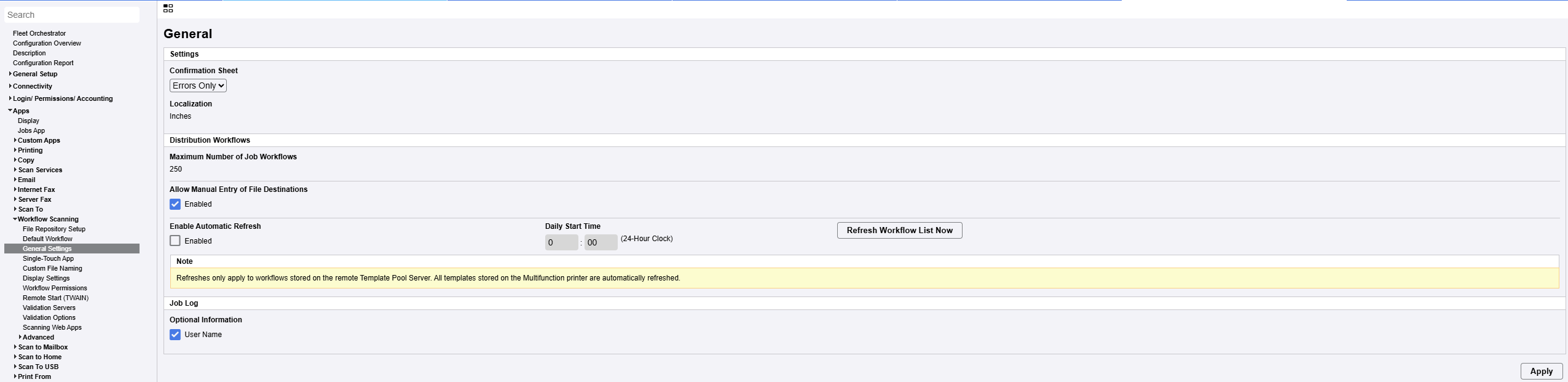
Available options
|
Setting |
Description |
|---|---|
|
On |
Prints a confirmation sheet after every Workflow Scanning job. |
|
Errors Only |
Prints a confirmation sheet only when the Workflow Scanning job fails. |
|
Off |
Does not print a confirmation sheet. |
Xerox confirms that when Off is selected, the confirmation sheet is not printed; job status can instead be checked in the job log.
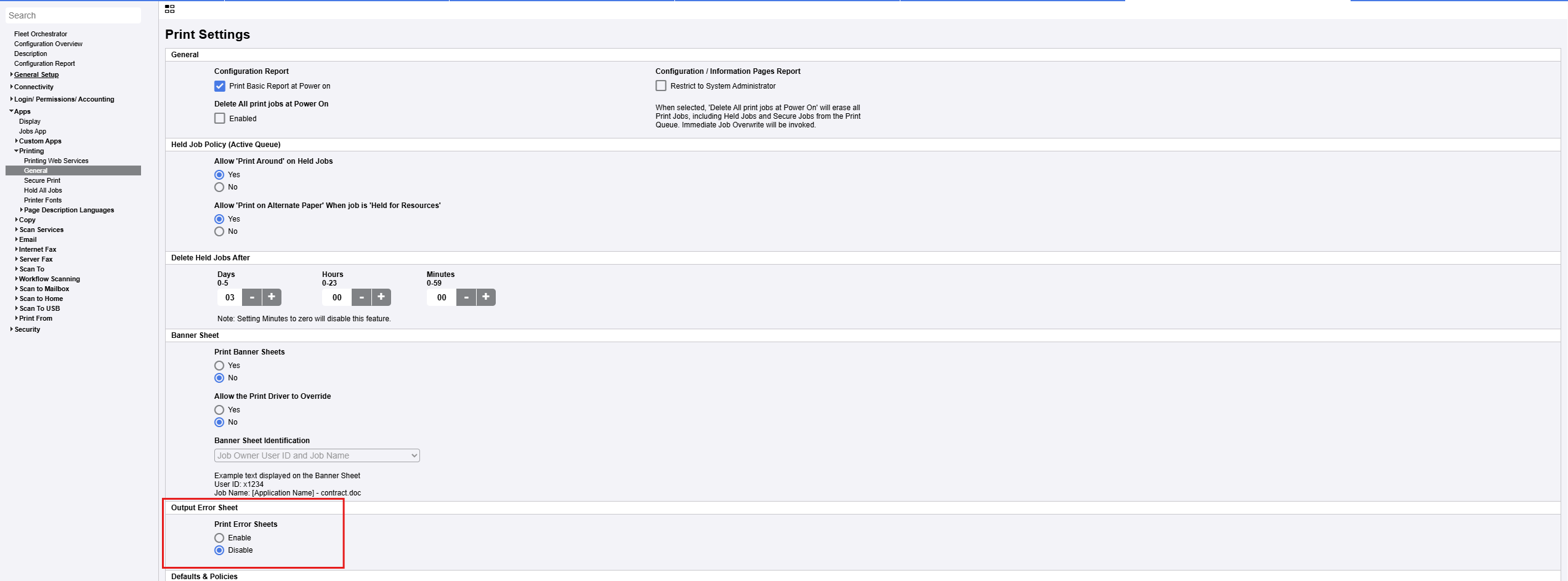
Disable Print Error Reports
For Print jobs, check the printer's general printing settings.
Navigate to:
Properties → Apps → Printing → General
Check for settings related to:
-
Error Reports
-
Confirmation Reports
-
Output Error Sheet
Disable the relevant report option and click Apply/Save.